Use a Photo Editor Offline in Your Browser
Edit and export images locally after picshader's application assets have loaded, without uploading the image.
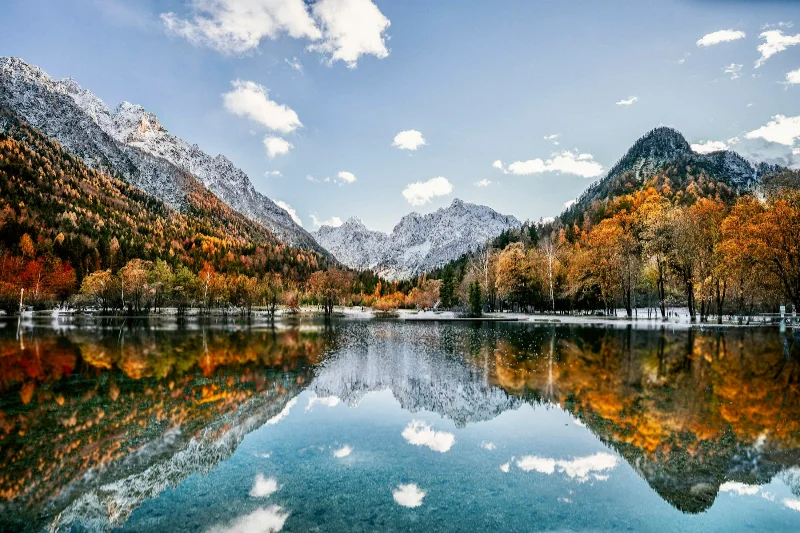
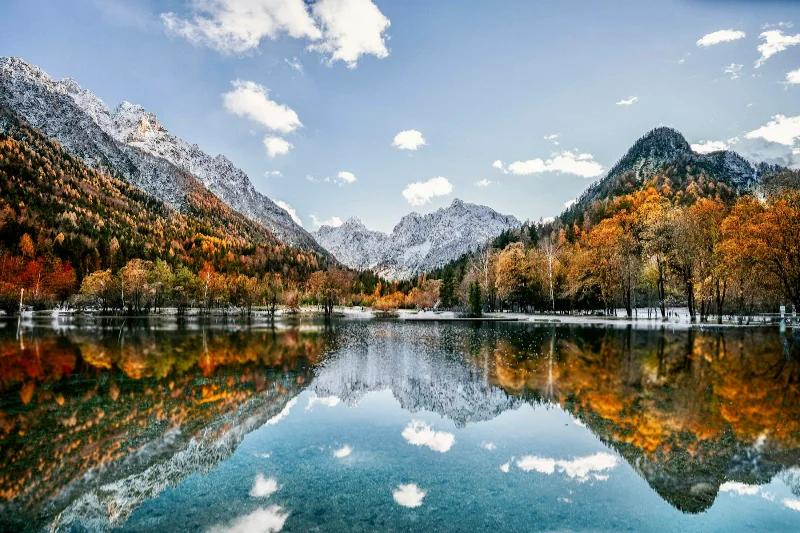
Examples use the bundled photograph by Michal Janek. Photo credit and license. Open your own image above to edit it locally.
How to use offline editing
- Visit picshader while online and let the editor load. The production app caches its core assets where browser storage permits.
- Keep the editor open or revisit a previously loaded editor page after disconnecting. Open a local PNG, JPEG, or WebP.
- Apply effects, crop, frame, and export on your device. A fresh page reload starts a new editing session.
What to know
Offline availability depends on HTTPS or localhost, browser storage, and a successful initial cache. Private browsing or storage eviction can prevent offline reload. Images are not saved across reloads, and unvisited guide pages may need a connection.
Files and export
Open a PNG, JPEG, or WebP with the file picker, drag-and-drop, or clipboard paste. All image processing happens on your device. Choose PNG or WebP to preserve transparency, or JPEG to flatten it onto a color. Exports use the original image resolution plus the frame unless you choose a smaller size.
A modern browser with WebGL2 is required. Browser and GPU limits can prevent very large exports; picshader explains the limit and offers a smaller size. No account or watermark is required.