Add Padding to Images Online
Add even space around a photograph using transparent padding or a solid frame background.
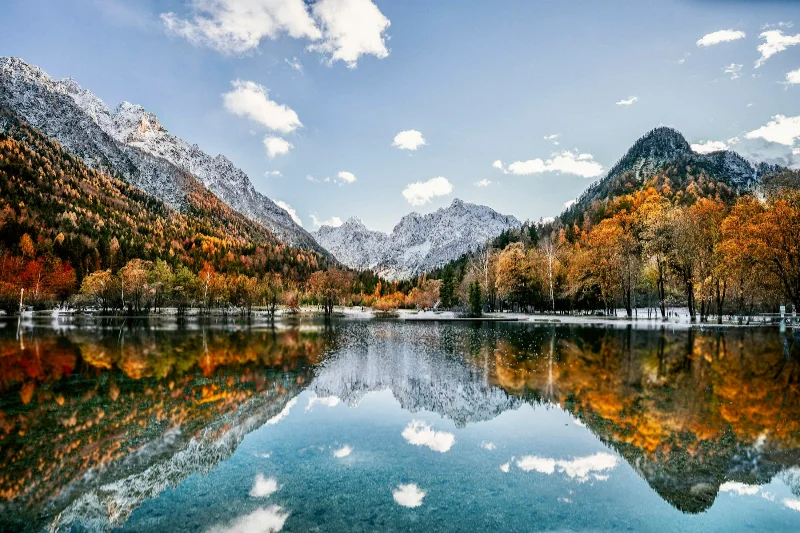
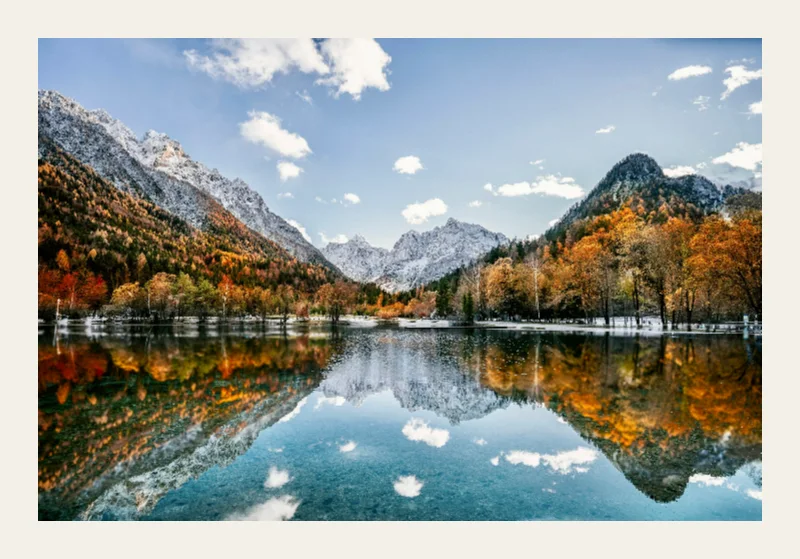
Examples use the bundled photograph by Michal Janek. Photo credit and license. Open your own image above to edit it locally.
How to use padding
- Open an image and select Frame → Background. This page starts with an 8% padded frame.
- Adjust Padding with the slider or type a number. Padding is a percentage of the image's shorter side.
- Leave Transparent checked for clear space, or uncheck it and choose a background color. Check the final dimensions before exporting.
What to know
Padding enlarges the output canvas without shrinking the original image. Borders and shadows can add further space beyond the padding.
Files and export
Open a PNG, JPEG, or WebP with the file picker, drag-and-drop, or clipboard paste. All image processing happens on your device. Choose PNG or WebP to preserve transparency, or JPEG to flatten it onto a color. Exports use the original image resolution plus the frame unless you choose a smaller size.
A modern browser with WebGL2 is required. Browser and GPU limits can prevent very large exports; picshader explains the limit and offers a smaller size. No account or watermark is required.