Compare Original and Edited Photo Effects
Hold to compare a photo effect with the original image, then use Fit or 100% to inspect the result.
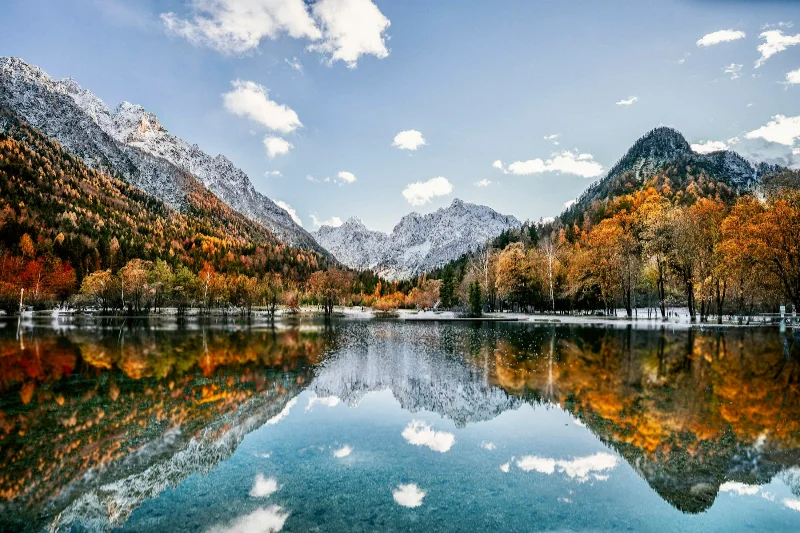
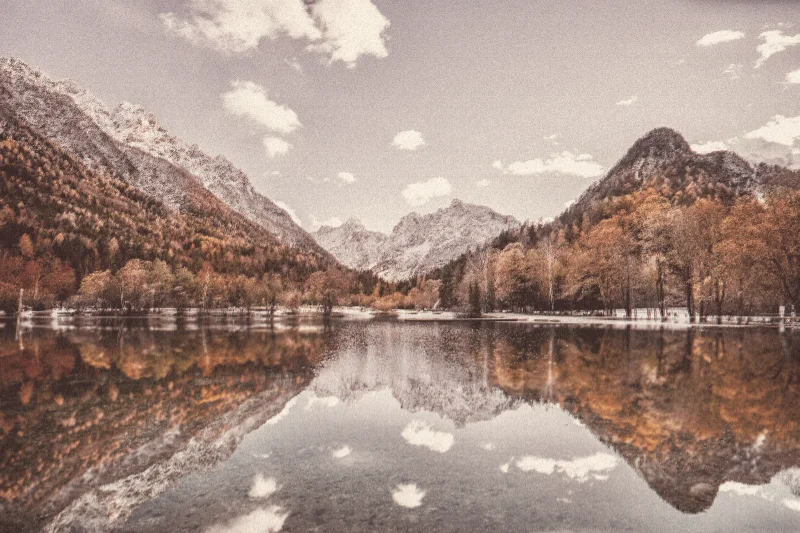
Examples use the bundled photograph by Michal Janek. Photo credit and license. Open your own image above to edit it locally.
How to use original comparison
- Open a photo and select an effect. This page starts with Risograph on the bundled sample.
- Hold the Original button or the Space key to inspect the original; release it to return to the effect.
- Choose Fit for the composition or 100% to inspect the image at its actual layout size. Frame and crop settings stay in place during comparison.
What to know
Very large images can use a reduced-resolution preview, including at 100%. The interface discloses this, and export still uses the selected output resolution within browser limits.
Files and export
Open a PNG, JPEG, or WebP with the file picker, drag-and-drop, or clipboard paste. All image processing happens on your device. Choose PNG or WebP to preserve transparency, or JPEG to flatten it onto a color. Exports use the original image resolution plus the frame unless you choose a smaller size.
A modern browser with WebGL2 is required. Browser and GPU limits can prevent very large exports; picshader explains the limit and offers a smaller size. No account or watermark is required.