Free Glitch slices Photo Effect
Shift horizontal image bands and split their red channel for a sliced digital glitch.
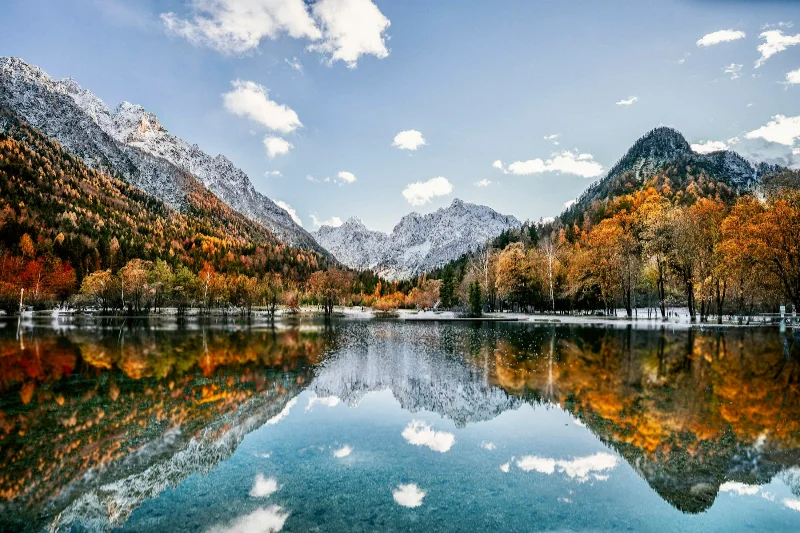
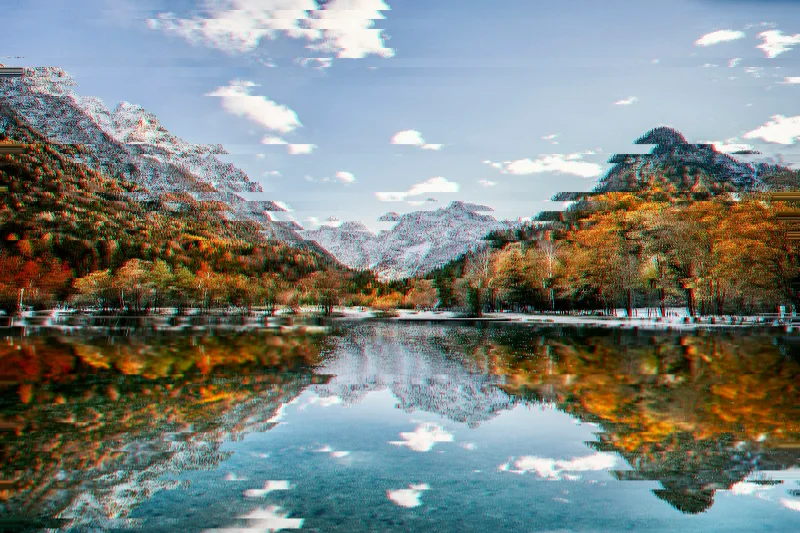
Examples use the bundled photograph by Michal Janek. Photo credit and license. Open your own image above to edit it locally.
How to apply Glitch slices
- Open your photo in the editor above. Glitch slices is already selected, and the sample is ready to try.
- Adjust Strength, Scale, Offset in the Effect tab. You can drag sliders or type validated numbers directly.
- Hold Original or Space to compare. Add a crop or frame if needed, then choose Export to download the finished image.
Getting the look
Offset changes how far strips move sideways. Scale determines band height; a strong central subject makes the displaced fragments more recognisable.
Glitch slices controls
- Strength
- 0–100%. Starting setting: 100%.
- Scale
- 2–80. Starting setting: 18.
- Offset
- 0–100%. Starting setting: 65%.
Reset effect settings restores these defaults. Save a preset to reuse your own effect and frame combination on another image.
Files and export
Open a PNG, JPEG, or WebP with the file picker, drag-and-drop, or clipboard paste. All image processing happens on your device. Choose PNG or WebP to preserve transparency, or JPEG to flatten it onto a color. Exports use the original image resolution plus the frame unless you choose a smaller size.
A modern browser with WebGL2 is required. Browser and GPU limits can prevent very large exports; picshader explains the limit and offers a smaller size. No account or watermark is required.