Free Ink wash Photo Effect
Soften image tones into blue-gray ink and warm paper with textured wash regions.
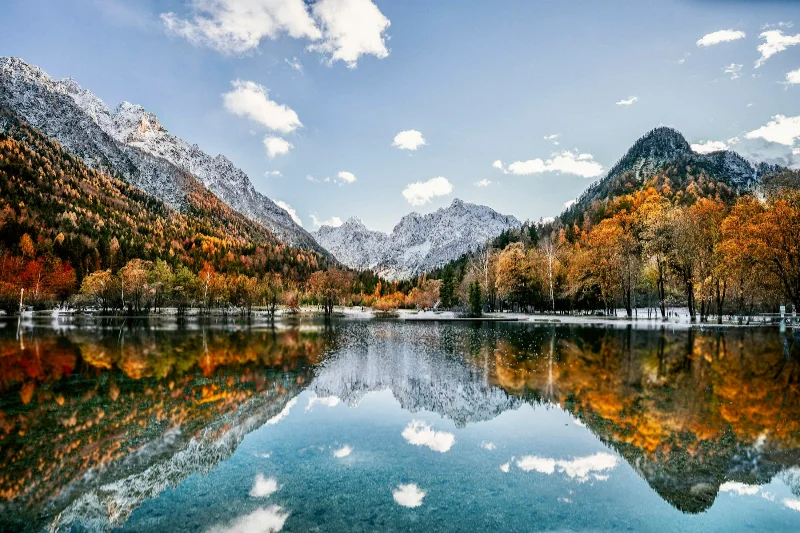
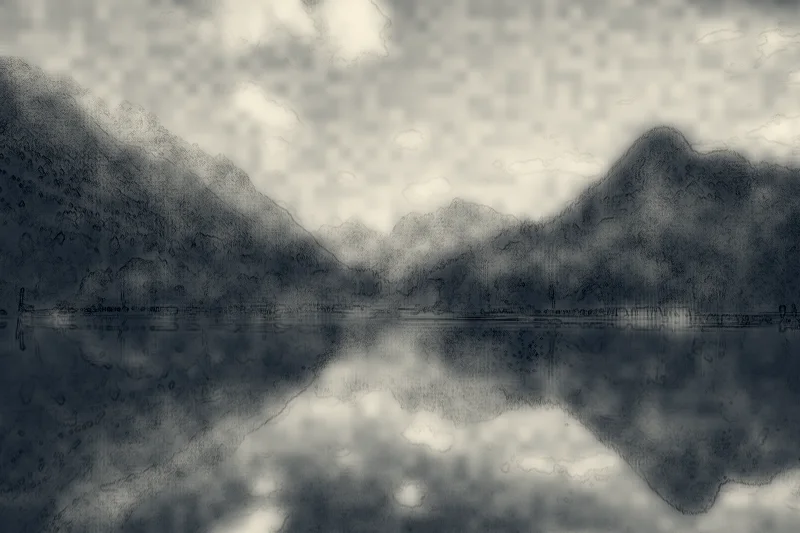
Examples use the bundled photograph by Michal Janek. Photo credit and license. Open your own image above to edit it locally.
How to apply Ink wash
- Open your photo in the editor above. Ink wash is already selected, and the sample is ready to try.
- Adjust Strength, Scale, Bleed in the Effect tab. You can drag sliders or type validated numbers directly.
- Hold Original or Space to compare. Add a crop or frame if needed, then choose Export to download the finished image.
Getting the look
Bleed changes the depth of the wash. Scale affects the soft texture, and a photograph with generous light areas helps preserve the impression of bare paper.
Ink wash controls
- Strength
- 0–100%. Starting setting: 100%.
- Scale
- 2–80. Starting setting: 12.
- Bleed
- 0–100%. Starting setting: 55%.
Reset effect settings restores these defaults. Save a preset to reuse your own effect and frame combination on another image.
Files and export
Open a PNG, JPEG, or WebP with the file picker, drag-and-drop, or clipboard paste. All image processing happens on your device. Choose PNG or WebP to preserve transparency, or JPEG to flatten it onto a color. Exports use the original image resolution plus the frame unless you choose a smaller size.
A modern browser with WebGL2 is required. Browser and GPU limits can prevent very large exports; picshader explains the limit and offers a smaller size. No account or watermark is required.